Call every number on the web,
in a single click.
E4SP Click-to-Call spots phone numbers on any page and turns them into call badges. One click, and the number goes to your Web Phone, which places the call. This guide takes you from installation to customisation.
Overview
What is Click-to-Call?
An extension for Chrome and Firefox that builds on the Web Phone you already use. It works entirely in your browser: no data is sent to a server.
- Broad detection
tel:/callto:links and plain-text numbers, even added dynamically. - Call badge
the number becomes a clickable badge, in your brand colours. - Call from a selection
highlight a number and place the call from the keyboard. - Private
analysis is local, nothing is collected.
Installation
Install the extension
- Firefox
from addons.mozilla.org. Updates are automatic. - Chrome / Edge
from the Chrome Web Store. Updates are automatic. - Pin the extension
to the toolbar for quick access to the popup.
First connection
Choose what you call with
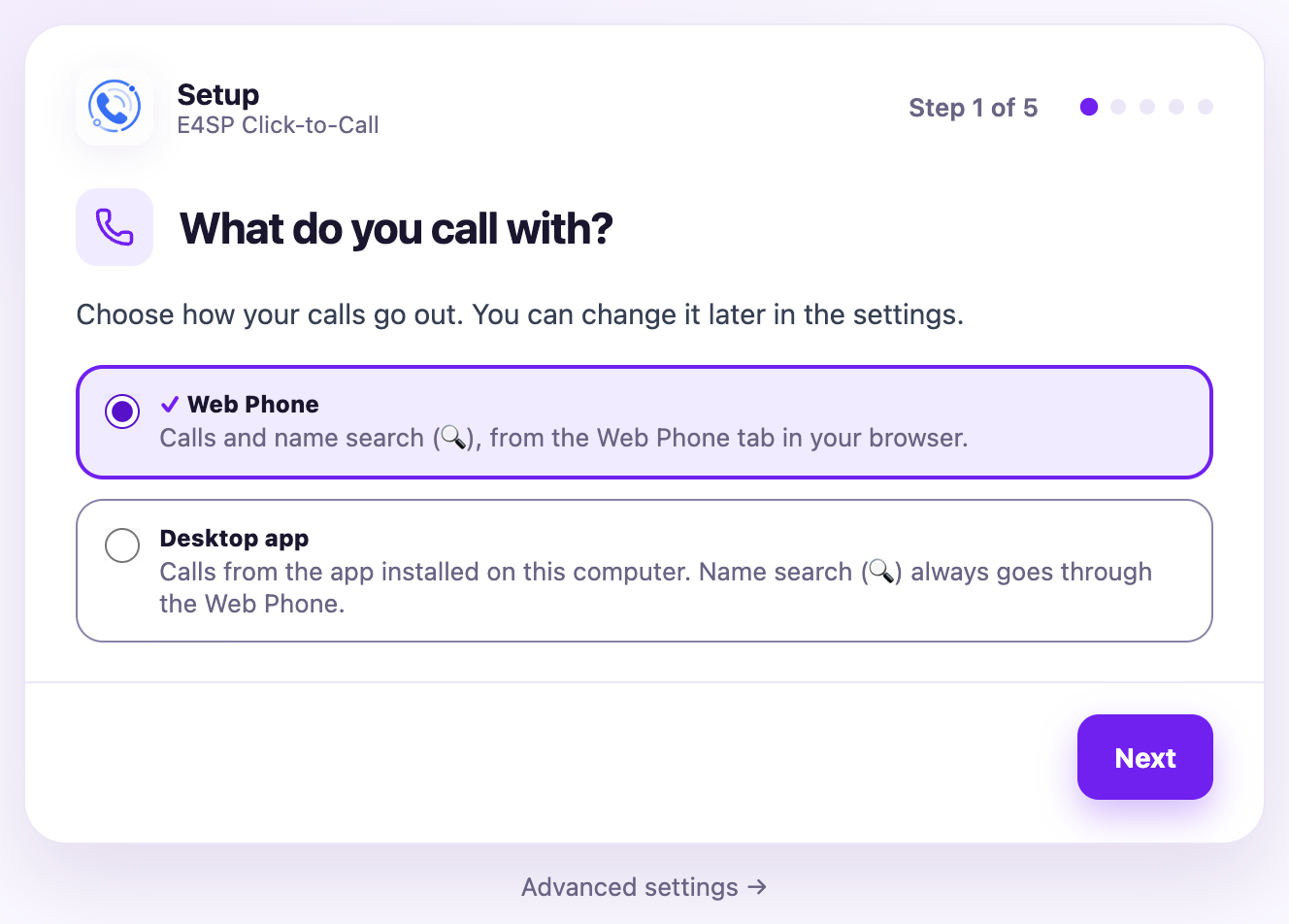
The assistant starts with a single question: what do you call with?
- Web Phone
calls and name search (🔍), from your browser tab. Open your Web Phone in a tab and sign in: it is detected automatically. - Desktop app
calls from the app installed on your computer. Click “Test the desktop app”: it opens and shows * on its dialpad, without calling anyone. Then confirm that it did. Your browser may ask for permission the first time. - Adjust the rest, or skip
detection, calls and appearance are optional and can be changed later in the settings.
Day to day
Calling from a page
On any page, detected numbers become call badges. The number is shown in the badge; a click sends it to your Web Phone.
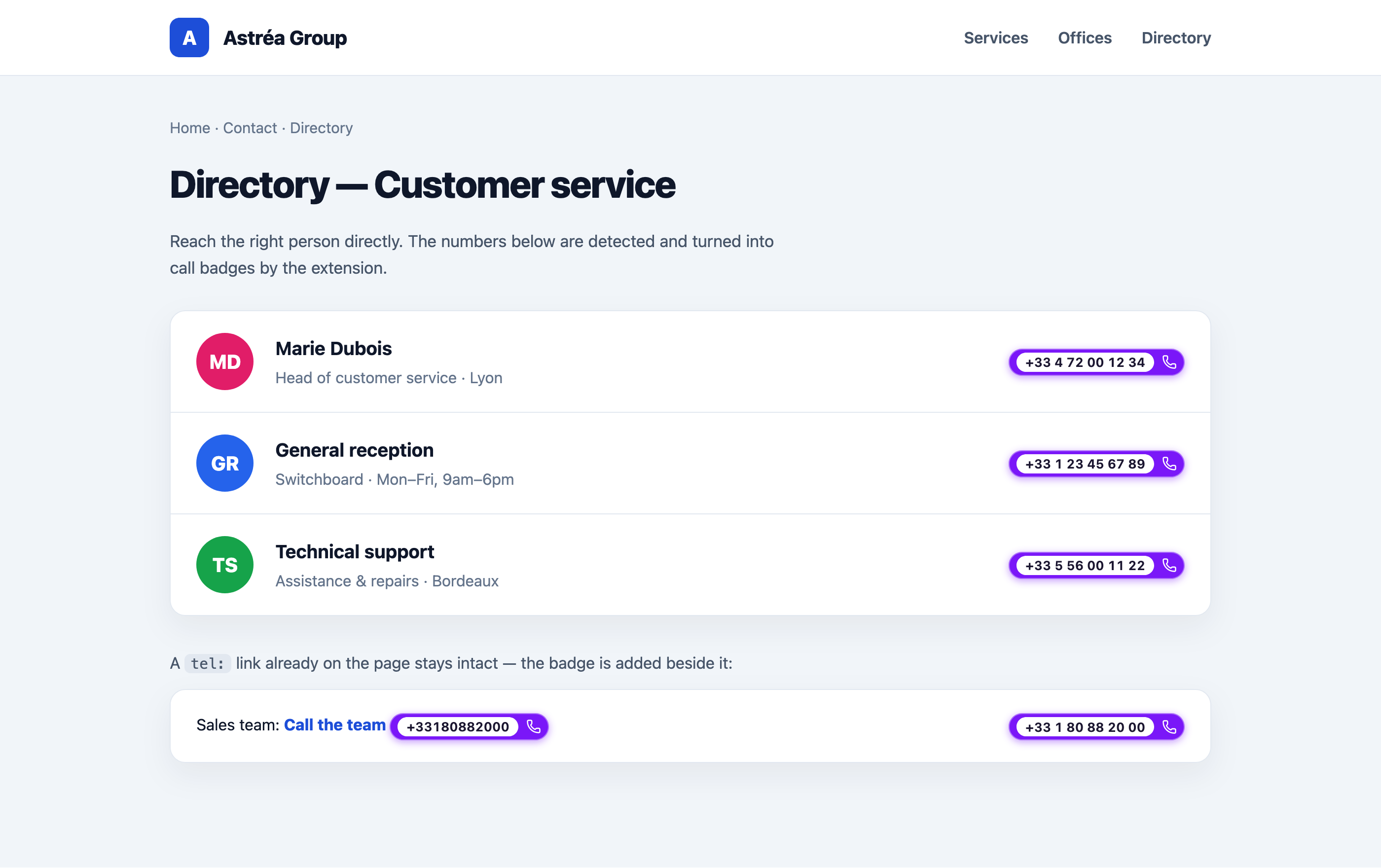
- Plain-text numbers are replaced by the badge (no duplicate).
- The page's existing
tel:links stay intact — the badge is added beside them. - You can also select a number and call from the keyboard (Alt/⌥ + P).
Quick controls
The popup
Clicking the extension icon opens the popup: the connection status, the detection settings for the current page, and the shortcuts.
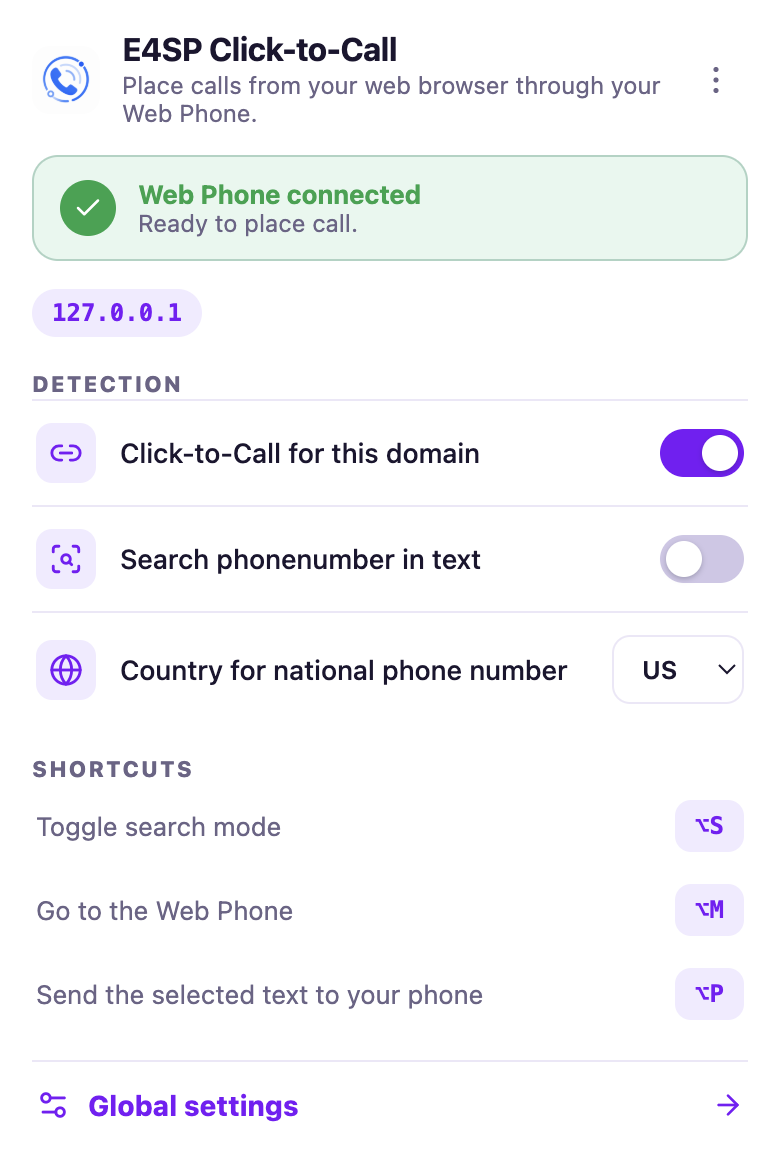
- Status
“Ready to place a call” when the Web Phone is connected; “Calls via the desktop app” when you call with the app. - This domain
turn detection on or off for the current site. - Plain-text numbers
also analyse non-clickable text. - Shortcuts
listed at the bottom, in your system's format.
Settings
The settings page
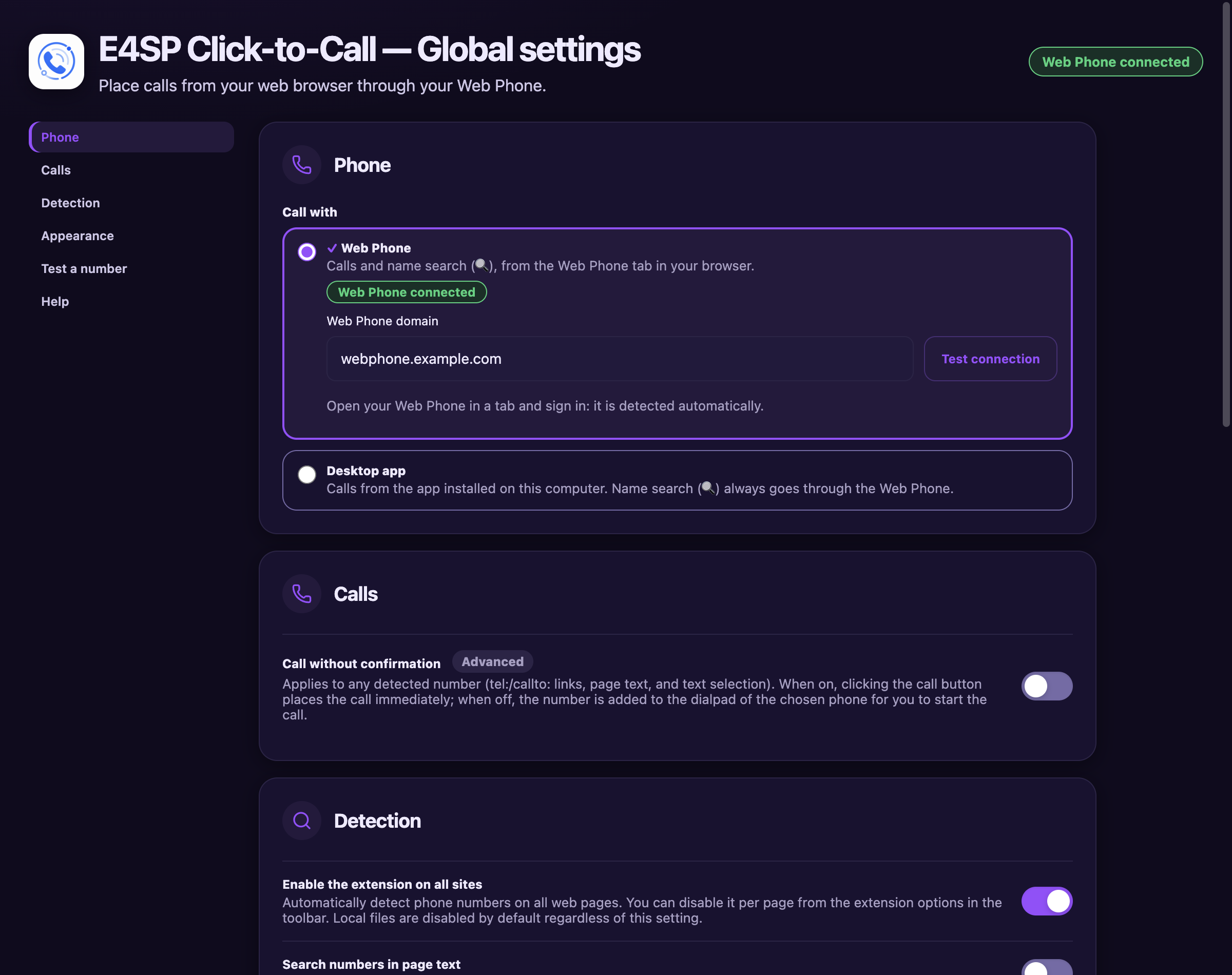
Reached via Settings (at the bottom of the popup). A single column with a menu on the left: Phone, Calls, Detection, Appearance, Test a number and Help. The phone status is shown at the top right. Every change is saved immediately.
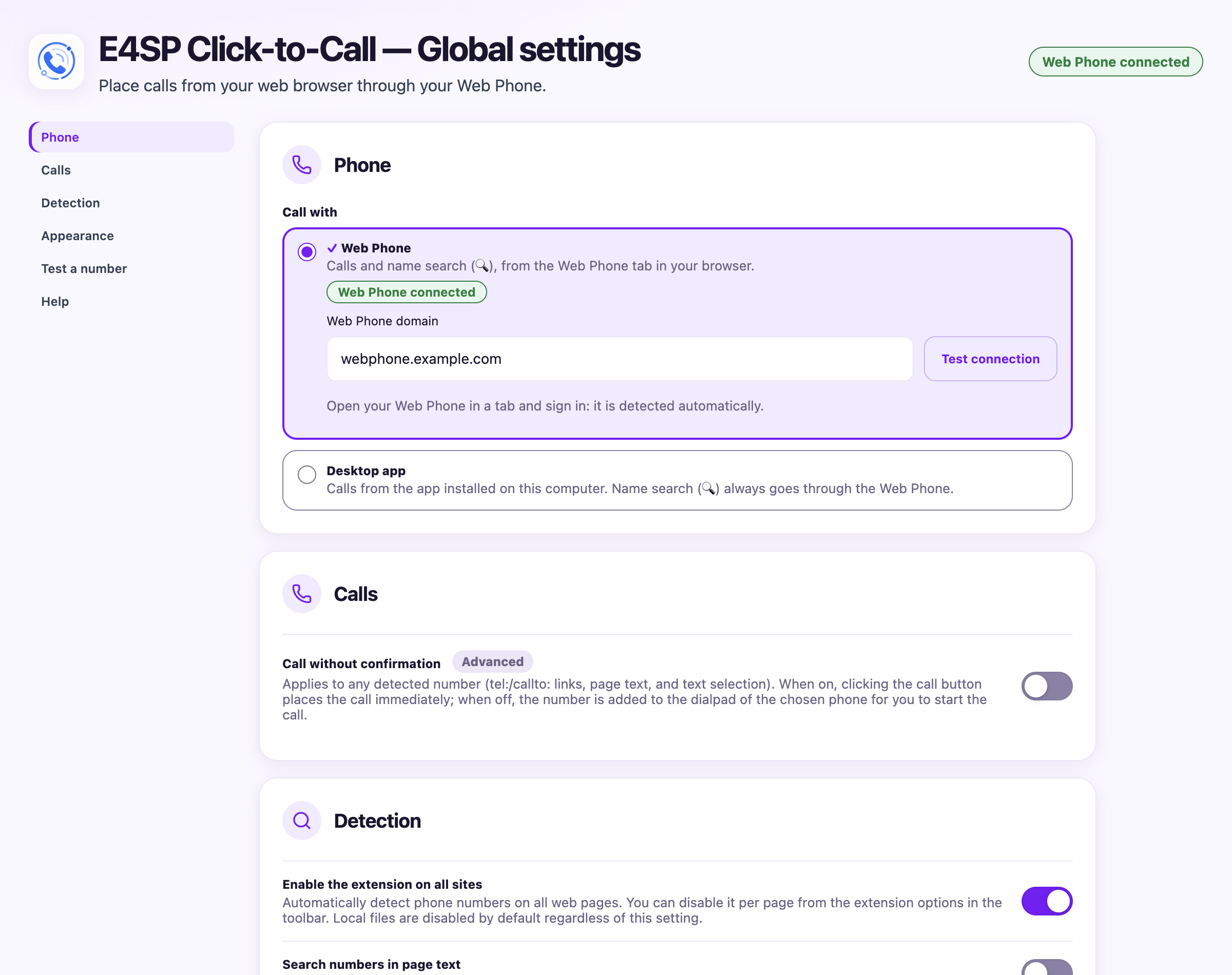
- Phone
“Call with”: Web Phone (domain, connection test, status) or desktop app (“Test the desktop app” button). The choice is made in one place; the chosen card expands. - Calls
call without confirmation; with the Web Phone, whether to open its tab during the call. - Detection
enable on all sites, search in text (the selection button andtel:links depend on it), default country for national numbers.
Customisation
Customise the badge
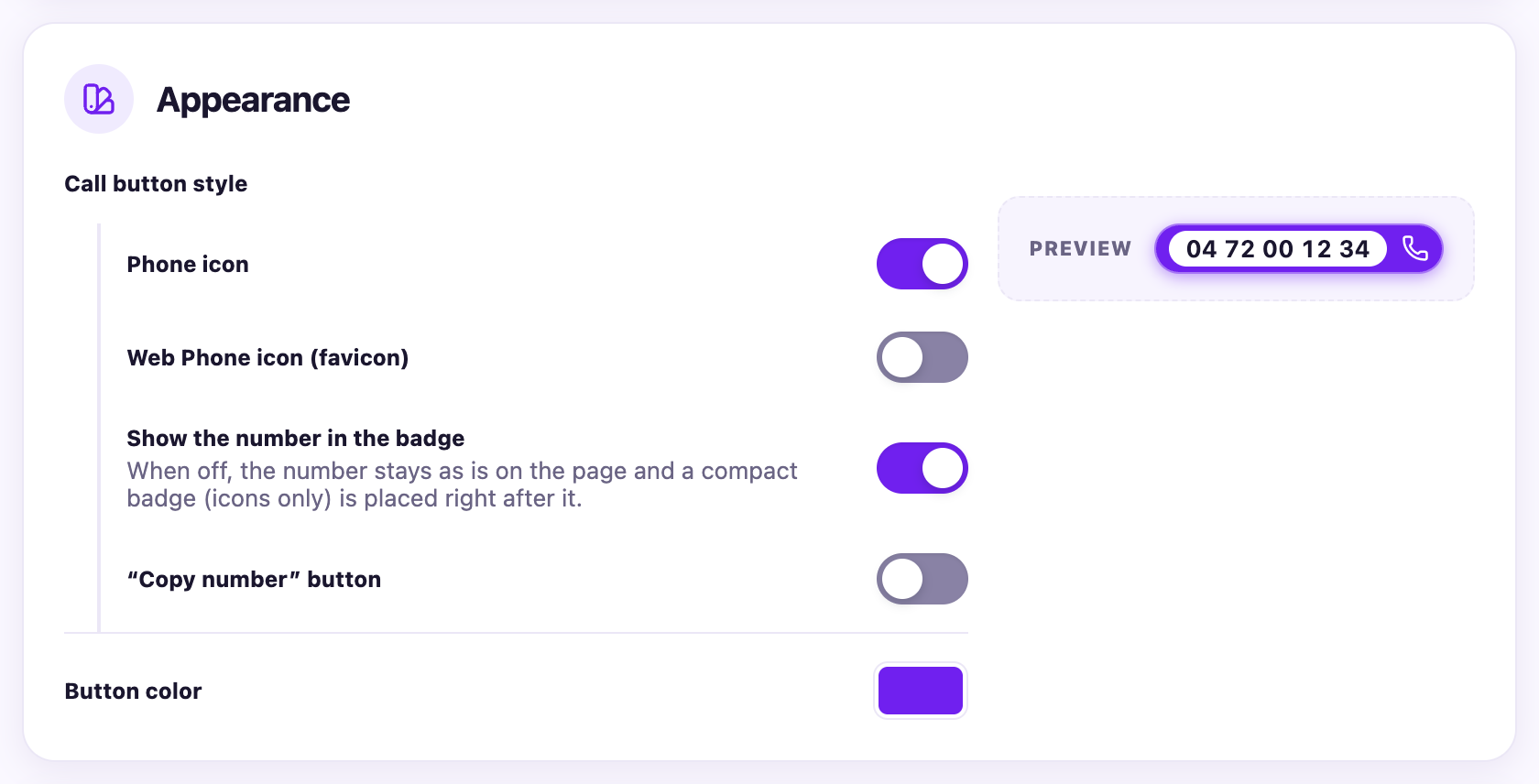
In the Appearance section, choose the icon style and the badge colour. A preview updates live.
- Button style
built with checkboxes: phone icon, Web Phone favicon, number shown in the badge (off: the number stays on the page, followed by a compact badge) and a “Copy number” button. - Colour
Enreach purple by default; the number stays readable whatever the colour (white sub-badge).
Keyboard
Keyboard shortcuts
On Mac, ⌥ is the Option key; on Windows/Linux, Alt. They can be changed in your browser's extension shortcut preferences.
| ⌥/Alt + M | Switch between the Web Phone and the previous page |
| ⌥/Alt + P | Call from the selected text |
| ⌥/Alt + S | Toggle number search on the page |
Appearance
Dark theme
The interface automatically follows your system theme (light or dark). Nothing to switch on.
Privacy
Privacy
The extension analyses page content locally, in your browser, solely to spot numbers. Nothing is sent to Enreach or to any third party.
Read the full privacy policy → (data processed, purposes, and what each requested permission is for)
FAQ
Frequently asked questions
Recognition depends on the reference country (settings): a foreign national number is badged only if that country matches. Fallback: select the number then ⌥/Alt + P. Details: which numbers are detected.
Yes, it's intentional: the extension discards these sequences to avoid false badges. See the list of intentionally ignored cases.
Yes, depending on the reference country set, and always for numbers in international format (+ prefix). See depending on the reference country.